Your support desk,
in your pocket
Reply, transfer and close conversations from your phone. With on-call switched on, conversations reach you even with no computer open — from every company you support, in a single list.
- Windows Get it on the Microsoft Store
- Mac Get it on the Mac App Store
- iPhone and iPad Get it on the App Store
- Android In review
For the team of companies that already use bFocus. Companies still sign up on the website.
Support more than one company?
Sign in once.
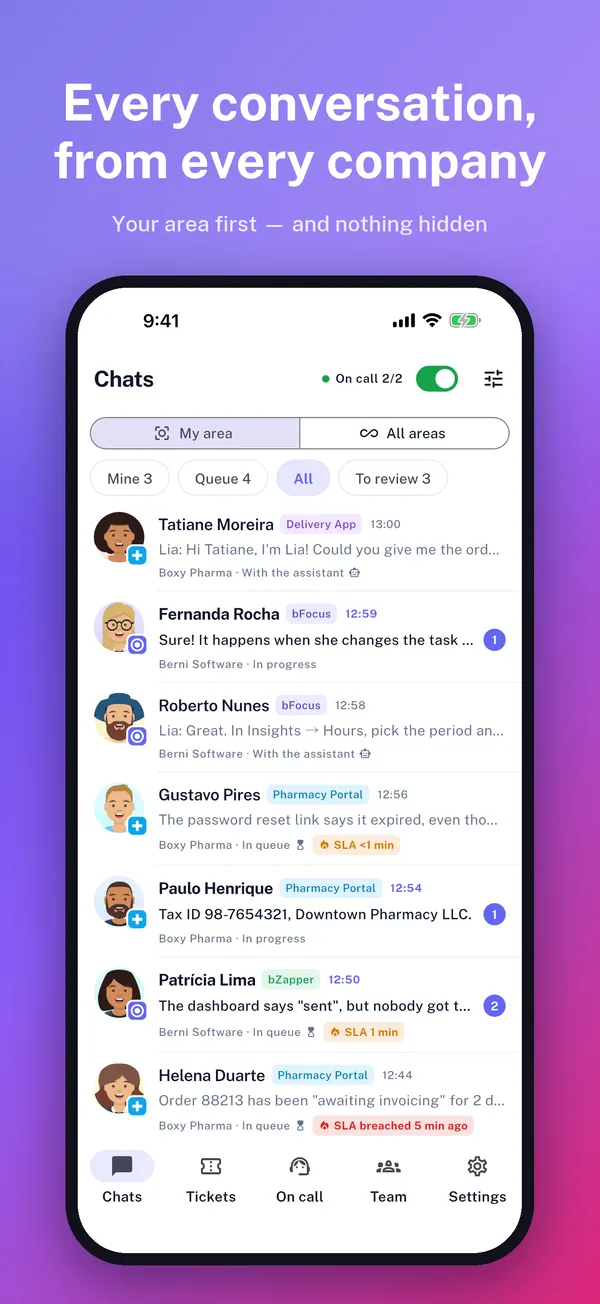
Type your work e-mail, get a code, and you are in: every company you support shows up together.
- No password. A code by e-mail, just like bFocus on the web.
- One list for everything. Conversations from every company, with each company’s badge and the customer’s photo.
- Unread first. A counter per conversation and a preview of the last message, like WhatsApp.
- Your way. Portuguese, English and Spanish, in light or dark theme — on iPhone, iPad and Android.
- Lock with Face ID or fingerprint. Optional. If it fails, your device passcode works.
Answer on the move.
No computer open.
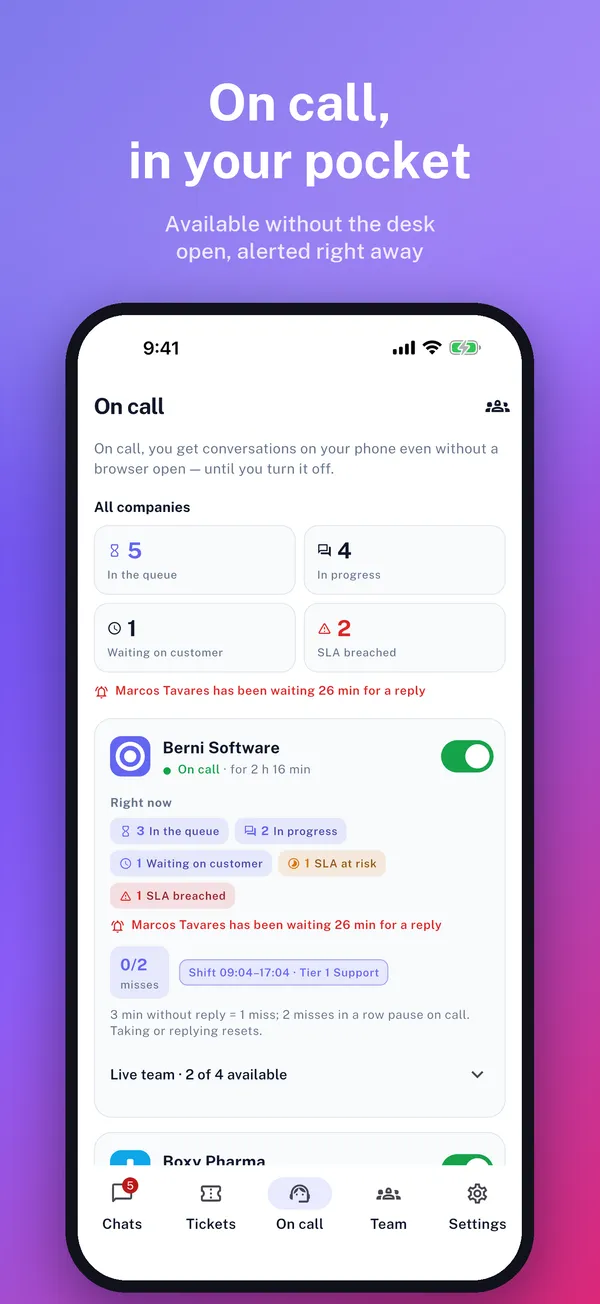
Switch on-call on per company — or all at once — and conversations come to your phone. The rule is clear and the same for everyone:
- 3 min
- without a reply count as a miss
- 2
- misses in a row pause on-call, with a heads-up
- 0
- taking or replying resets the count
A miss only counts when you have no desk open on the computer or in the app. A conversation nobody took stays in the team queue.
The same Mesa,
on your computer.
The team app also runs on Mac and Windows, with the same screens: conversations, conversation, on-call, tickets and team. On a wide window the bottom bar becomes a side rail — the same layout the iPad uses.
Close the window, stay on call
The app sits in the Windows tray or the Mac menu bar and the Mesa connection stays up, so on-call keeps working. Starting with the computer is a switch in settings.
Your system’s own notifications
On Mac, through Apple, with the same key as the iPhone. On Windows the app alerts you directly: a customer message in your conversation or in an unassigned one, and a new conversation in the queue — never the conversation open on your screen, nor the one the AI is handling.
Touch ID and Windows Hello
The same lock as on the phone, now with your system’s biometrics. If it fails, your computer password works.
Opens ready to reply
The window opens maximised and, when you open a conversation, the cursor is already in the reply box. On a phone that would pop the keyboard up; on a computer it saves a click per conversation.
What your computer needs
- Mac
- Apple silicon or Intel — the app is universal. It needs macOS 13 (Ventura) or newer and ships through the Mac App Store, on the same record as the iPhone and iPad app.
- Windows
- Windows 10 version 1809 or newer, on an x64 processor — this first build does not cover Windows on Arm. It ships through the Microsoft Store as an MSIX package; there will be no standalone installer.
- Linux
- There is no build. On those machines the desk runs in the browser, as it does today.
- Languages
- Portuguese, English and Spanish — the same three as the phone app and this site.
Both are published: the Mac on the Mac App Store and Windows on the Microsoft Store. Each store handles updates on its own, so the app stays current without you doing anything.
From the first “hi” to closing,
on your phone.
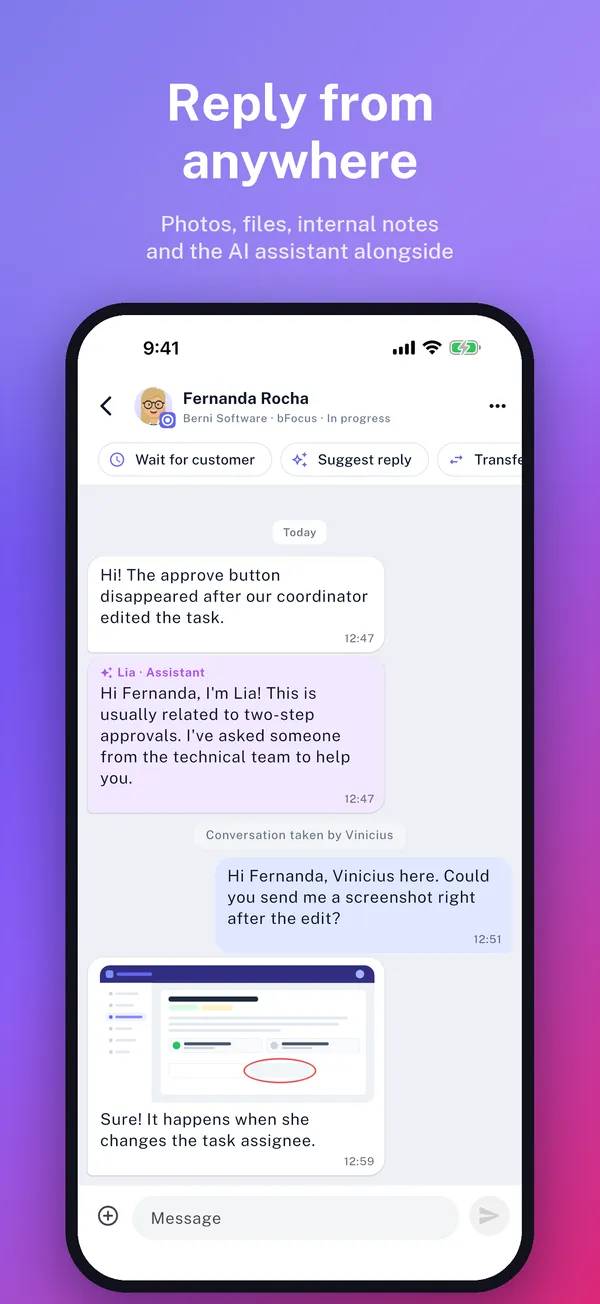
- Reply and attach. A photo from the camera or gallery, or any file.
- Internal note. A message for the team that the customer never sees.
- Transfer. To a person or to an area, such as Finance.
- Suggest a reply. With your company’s AI, if it is set up.
- Wait for the customer. Mark that the conversation depends on their reply.
- Close with a review. The AI reviews the conversation before closing, and you check it.
- WhatsApp in your pocket. A conversation that came in on WhatsApp — including from the customer’s group — shows up in the same list, and your reply goes back out there. You answer from the phone without opening WhatsApp.
Yours first.
Nothing hidden.
Whoever handles Finance sees Finance conversations first — across all of the company’s products.
- My area or All. One switch per company. Conversations from other areas stay visible, with a subtle mark.
- Alerts go to the right people. A new conversation alerts the right area. If nobody there is available, it alerts whoever can help.
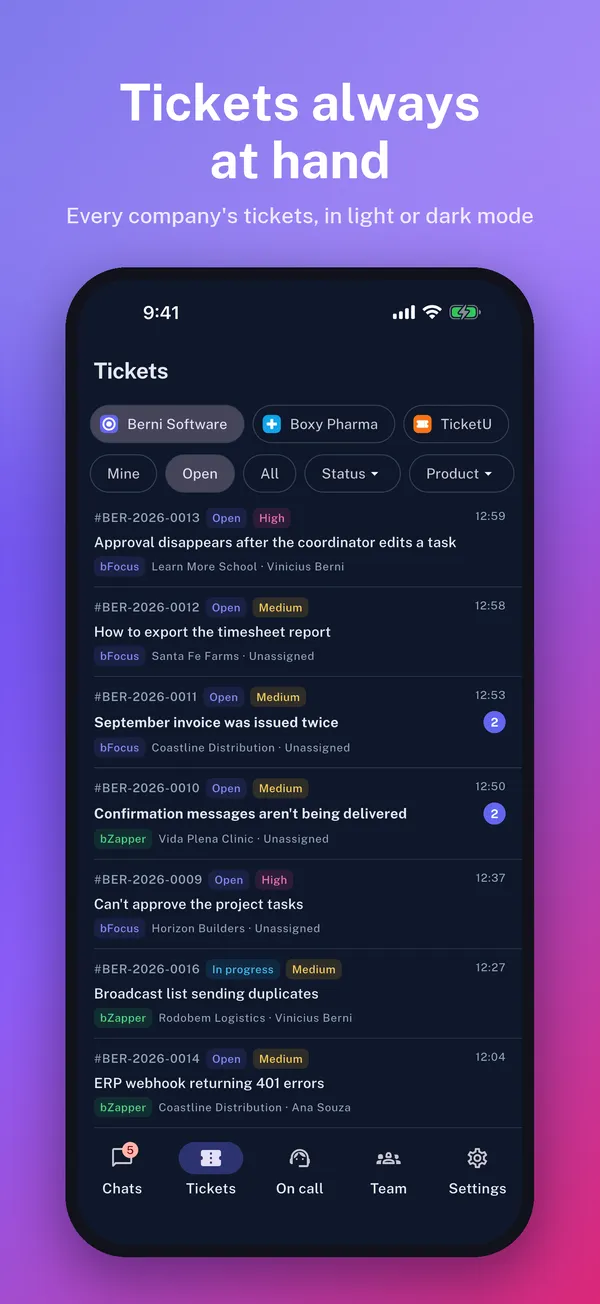
- Tickets by company and product. With status filters, just like the web.
Notifications you can reply to.
Your team at a glance.
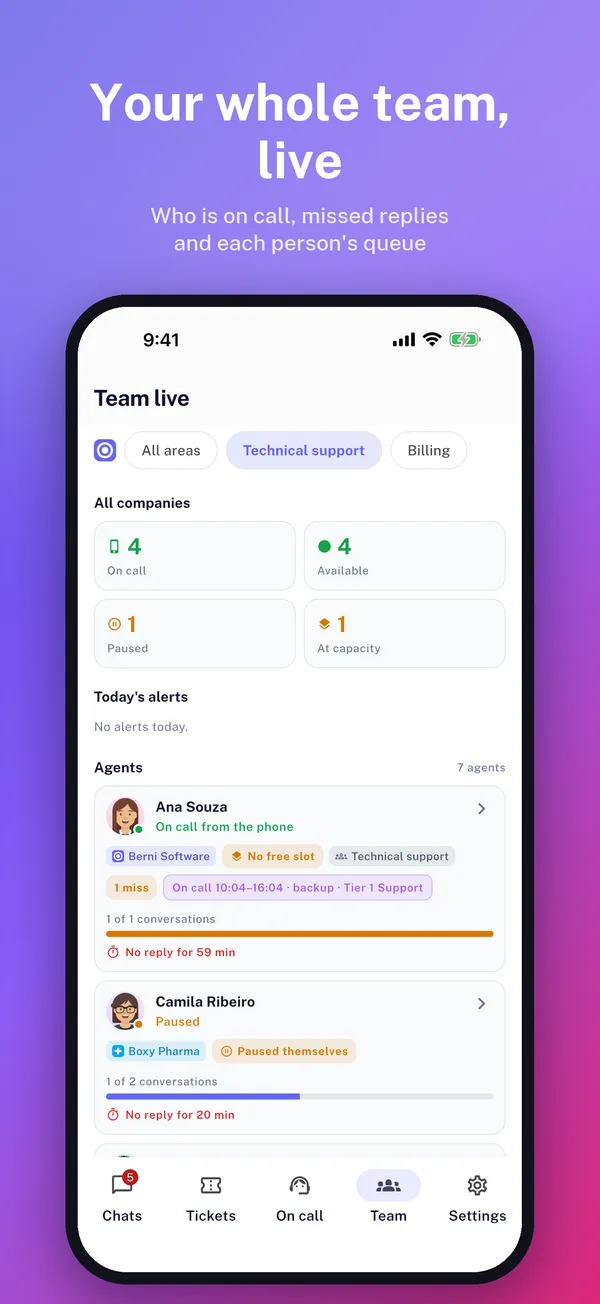
Reply from the notification
Straight from the lock screen, without opening the app: reply right there or mark it as read. Each conversation has its own notification — grouped by conversation on iPhone, by company on Android. You choose which alerts you get.
In the car, by voice
Android Auto reads the message aloud and you reply by speaking.
Live team view
Who is on-call, who paused and why, misses, time since the last reply and each person’s queue. A department lead opens the team view already on their own area.
What the app does not do
- It is not for your end customers: they keep talking to you through the widget, e-mail or WhatsApp.
- It does not create project tasks — that stays on the web.
- It does not sign up companies: everyone who signs in is already on a company’s team in bFocus.
Questions about the app
Is the app in the stores yet?
In three of the four: the App Store (iPhone and iPad), the Mac App Store and the Microsoft Store. Google Play is still reviewing it — meanwhile, on Android the desk works in the browser and installs to the home screen from Chrome, notifications included.
Is there a desktop version?
There is, and both are published: the same app runs on Mac and Windows, sits in the tray so on-call keeps working, and unlocks with Touch ID or Windows Hello. The Mac build needs macOS 13 or newer and ships through the Mac App Store; the Windows one needs Windows 10 or 11 on an x64 processor and ships through the Microsoft Store as MSIX — there is no standalone installer. There is no Linux build: on those machines the desk stays in the browser. Note that on-call promises something different on each: on the phone it works with the app closed, on the computer it works with the app running in the background.
Do I need to keep the app open to be on-call?
No. With on-call on, conversations arrive as notifications and you reply from wherever you are. The 3-minute miss only counts when none of your desks is open.
I work for two companies. Do I need two accounts?
No. You sign in once with your e-mail and a code, and every company you support appears in the same list, each with its badge.
Can my customers use the app to open tickets?
No, the app is for your team. Your customers reach you through the widget — including inside your own app, with the native packages —, by e-mail or on WhatsApp.
It’s in the stores.
Get it on the App Store, the Mac App Store or the Microsoft Store. On Android, the desk works in the browser while Google reviews it.